


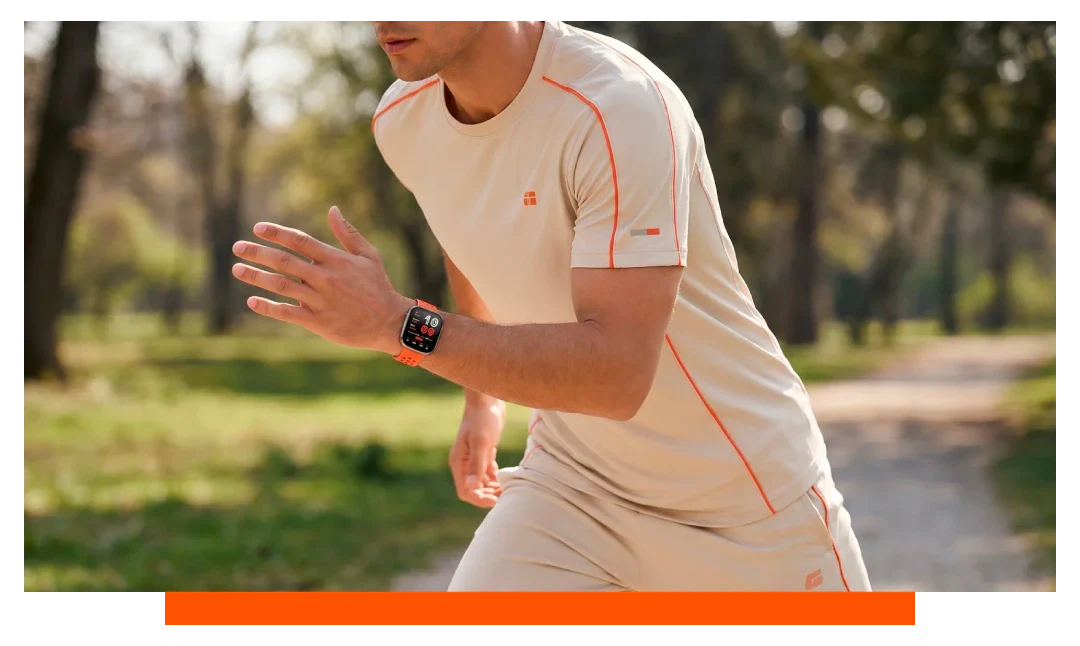
Infograph Modular on Apple Watch 11 is the best face for runners because it maximizes glanceable data, supports a large central Workout complication, and stays legible at speed. Ultra 3 users seeking navigation and night readability can prefer Wayfinder or Modular Ultra, but for most runners, Infograph Modular wins.
Why Infograph Modular suits runners on Apple Watch 11
Infograph Modular dedicates a large center slot to real-time Workout metrics with bold typography. Five additional complications give quick access to pacing, zones, and navigation without swiping. This layout reduces cognitive load when you are moving fast.
Data density vs clarity on the run
Runners need more than one stat at a time, yet too many fields become clutter. Infograph Modular balances density by using a huge central pane for pace or power while keeping cadence, heart rate zone, and elevation in smaller tiles. Large numerals remain readable when cadence and arm swing cause micro blur.
Fast control with minimal taps
Assign the central tap to immediately open Workout for a warm start. Map, Weather, and Music can fill edge tiles for route checks, wind readings, and volume tweaks. Digital Crown zoom keeps interactions precise with sweaty fingers.
Honorable mentions by scenario
Activity Digital for simplicity first
Activity Digital excels if you prefer giant digits with minimal distractions. It shows core rings at a glance and pairs nicely with auto splits and pace alerts. Choose it for parkruns or short intervals where clarity beats configurability.
Wayfinder and Modular Ultra for Ultra 3
On Apple Watch Ultra 3, Wayfinder offers dual compass rings and quick access to Backtrack for off-road loops. Modular Ultra mirrors Infograph Modular’s legibility with Ultra styling and high-contrast elements. Trail runners will appreciate easy day-night adjustments and bold waypoint markers.
Runner-ready Apple Watch faces compared
| Face | Best for | Complication slots | Center data size | Navigation readiness | Night mode | Notes |
|---|---|---|---|---|---|---|
| Infograph Modular | Road training, races | 1 large + 5 small | Excellent | Good with Maps comp | No | Best all-round for 11 |
| Activity Digital | Simplicity, short runs | 2 to 3 | Very large | Limited | No | Ultra clear at a glance |
| Modular | Everyday jogs | 1 medium + 4 small | Good | Moderate | No | Battery friendly layout |
| Wayfinder | Trails, ultras | Up to 8 | Good | Excellent | Yes - Ultra only | Backtrack quick access |
Which Apple Watch complications help while running?
Workout is essential, placed centrally to show pace, distance, duration, and rolling pace. Heart Rate Zones displays 5-zone distribution, great for tempo control and aerobic base building. Running Power, cadence, ground contact time, vertical oscillation, and stride length give form insights introduced since watchOS 9 and refined in watchOS 11.
Maps helps follow GPX routes and shows turn cues when available. Compass and Backtrack are valuable for out-and-back trails, especially with Ultra 3. Weather adds wind speed, direction, and temperature so you can pace by conditions.
Battery and Music round out a race setup by avoiding surprises mid course. If you race with metronome cadence tones, place a quick Music complication and a Workout tile to toggle intervals. For safety, include Emergency SOS and Fall Detection awareness in your plan.
Top quick-access complication picks
- Workout center
- Heart Zones
- Running Power
- Cadence tiles
- Maps route
How to customize metrics on Apple Workout app?
Open Workout, tap the three dots on Outdoor Run, then tap the pencil to edit views. Add metrics like average pace, rolling pace, lap pace, running power, cadence, stride length, and elevation. Reorder fields so pace or power sits first, with zones and cadence next for real-time control.
Create multiple views and use the Digital Crown to switch during runs. Set auto lap to 1 km or 1 mile to standardize splits across workouts. Enable alerts for heart rate zone drift and target pace so you get haptic nudges without looking down.
Optimize for intervals and races
For intervals, build a custom Workout with warmup, effort, and recovery blocks, then surface lap pace and cadence up top. For races, prefer rolling pace to smooth GPS noise and keep average pace nearby for macro control. Add Race Route to retrace a personal best on the same course.
Training insights that pair with your face
watchOS 11 introduces Training Load estimates that contextualize your recent effort. Combine this with Vitals trends to spot readiness signals like resting heart rate and sleep duration. Use Heart Rate Variability trends in Apple Health for long-term adaptation checks.
Field metrics that matter most
Cadence correlates with stability and ground time - many runners target 170 to 190 steps per minute at race effort. Running power normalizes effort across hills and wind, making pacing steadier than speed alone. Vertical oscillation and ground contact time help spot form inefficiencies without a chest strap.
GPS accuracy, navigation, and battery notes
Apple Watch 11 offers strong on-wrist GPS for road routes with reliable lock in open sky. Ultra 3 adds dual-frequency GNSS that improves track fidelity around tall buildings and canyons. For best traces, avoid covering the watch with thick layers and give it 30 to 60 seconds to lock before starting.
Backtrack records your route so you can retrace steps when trails get confusing. Use Maps or a third-party app with offline GPX for races that ban phones. Dim brightness a notch and minimize animations to stretch battery on long efforts.
Comfort, durability, and visibility tips
Pick high-contrast colors on Infograph Modular for midday sun and switch to darker palettes for night sessions. Try Bold Text, larger font sizes, and reduce transparency in Accessibility to lift legibility. If sweat is an issue, choose perforated or woven bands to reduce slip during fast intervals.
For comfort and quick swaps, upgrade with Apple Watch straps and add sweatproof Apple accessories for race day. Band changes can fine tune fit across seasons without tools. A secure fit also improves heart rate accuracy during surges.
When to pick each face
- Infograph Modular - most runs
- Activity Digital - sprints
- Modular - easy days
- Wayfinder - trails
- Modular Ultra - ultras
FAQ
Is Infograph Modular available on Apple Watch 11?
Yes, it is fully supported and ideal for a large central Workout tile plus five smaller complications. It is the default recommendation for road runners.
Do I need Apple Watch Ultra 3 for the best running face?
No, Apple Watch 11 with Infograph Modular covers most needs. Ultra 3 owners may prefer Wayfinder or Modular Ultra for trail navigation and night mode.
Which single metric should be central?
For flat road races, use rolling pace to smooth GPS wiggles. For hilly courses or windy days, use running power to stabilize effort.
What heart rate zones does Apple use?
Apple supports five zones that you can auto calculate from age or customize manually. Zones guide easy, tempo, threshold, and VO2max efforts.
How do I show cadence and stride length?
In Workout views, add cadence and stride length fields to the main screen. These metrics update continuously without extra sensors.
Can I race with turn-by-turn directions?
Yes, using Maps or compatible third-party apps where supported routes exist. Always preload routes and test haptics before race day.
Conclusion
The best Apple Watch face for runners is Infograph Modular on Apple Watch 11 because it delivers a large, legible central Workout panel and enough complications to control pace, power, and navigation without swipes. If you run trails with Apple Watch Ultra 3, choose Wayfinder or Modular Ultra for superior navigation and night readability.





Leave a comment
All comments are moderated before being published.
This site is protected by hCaptcha and the hCaptcha Privacy Policy and Terms of Service apply.